---
title: How to update your XRAI AR One glasses
description: Step-by-step guide for firmware updates
---
[Skip to content](https://knowledge.xrai.glass/update-xrai-ar-one#main-content)
English
Show submenu for translations
[More support](https://knowledge.xrai.glass/kb-tickets/new)
[](https://knowledge.xrai.glass/)
Open main navigation
Close main navigation
- English
Show submenu for translations
- [More support](https://knowledge.xrai.glass/kb-tickets/new)
- [Submit a help ticket](http://xrai.glass/contact)
[Submit a help ticket](http://xrai.glass/contact)
How can we help?
- There are no suggestions because the search field is empty.
1. [Knowledge Hub](https://knowledge.xrai.glass/)
2. [XRAI AR One](https://knowledge.xrai.glass/xrai-ar-one)
August 12, 2026
# How to update your XRAI AR One glasses
## Step-by-step guide for firmware updates
Keeping your smart glasses updated ensures optimal performance and access to the latest features. Follow these easy steps to update the firmware of your XRAI AR One glasses using our online updater tool.
### Step One
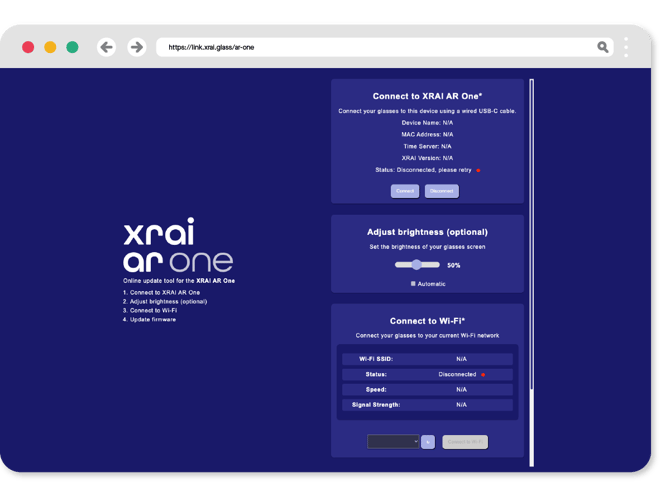
Open our [online updater tool](https://link.xrai.glass/ar-one) on a device that can connect to your glasses. You’ll need to use either [Google Chrome](https://www.google.com/intl/en_uk/chrome/) or [Microsoft Edge](https://www.microsoft.com/en-us/edge/download?form=MA13FJ), typically on a desktop computer with a USB to USB-C cable.
**[https://link.xrai.glass/ar-one](https://link.xrai.glass/ar-one)**
### Step two
Power on your glasses and connect them to your computer using a USB-C cable. Your glasses come with a USB to USB-C cable, but some computers may require a USB-C to USB-C cable.
### Step three
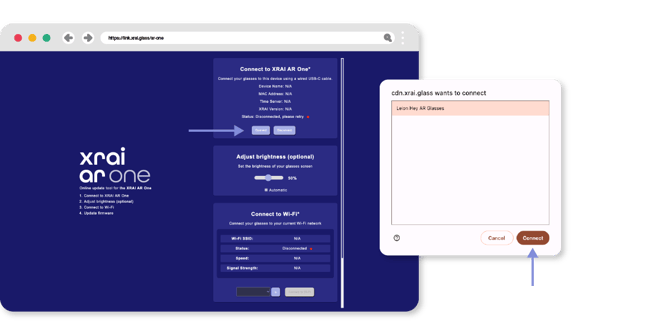
Once your glasses are connected, find the **Connect** option in the top box on the right-hand column of the updater tool. Click **Connect**, and a pop-up will appear in your browser. Select your device from the list and click **Connect** again.
### Step four
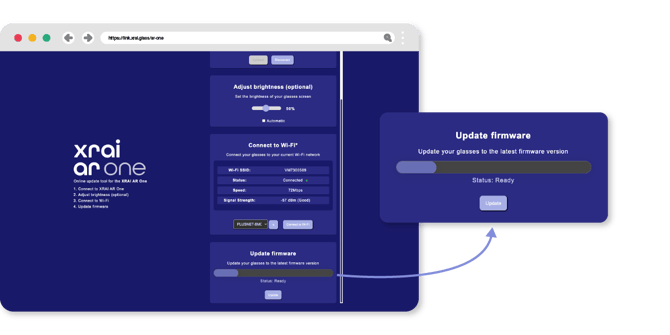
Scroll through the options on the right until you find **Update Firmware** and click **Update** to start the update process. Once the update is complete, you can also adjust the brightness and time zone settings if needed. After finishing the update, you can safely disconnect your glasses from the computer.
- [Getting started](https://knowledge.xrai.glass/getting-started)
- [Using XRAI](https://knowledge.xrai.glass/using-xrai#main-content)
- [AI Assistant](https://knowledge.xrai.glass/using-xrai#ai-assistant)
- [Languages & Translation](https://knowledge.xrai.glass/using-xrai#languages-translation)
- [Augmented Reality (AR)](https://knowledge.xrai.glass/using-xrai#augmented-reality-ar)
- [Transcription & Conversations](https://knowledge.xrai.glass/using-xrai#transcription-conversations)
- [Using XRAI Stream](https://knowledge.xrai.glass/using-xrai-stream)
- [XRAI AR2](https://knowledge.xrai.glass/xrai-ar2)
- [Smart Glasses](https://knowledge.xrai.glass/smart-glasses#main-content)
- [Using Nreal](https://knowledge.xrai.glass/smart-glasses#using-nreal)
- [XREAL Beam](https://knowledge.xrai.glass/smart-glasses#xreal-beam)
- [Troubleshooting](https://knowledge.xrai.glass/troubleshooting#main-content)
- [Troubleshooting XRAI Glass](https://knowledge.xrai.glass/troubleshooting#troubleshooting-xrai-glass)
- [Samsung](https://knowledge.xrai.glass/troubleshooting#samsung)
- [Nreal (Nebula)](https://knowledge.xrai.glass/troubleshooting#nreal-nebula)
- [Funding](https://knowledge.xrai.glass/funding#main-content)
- [United Kingdom](https://knowledge.xrai.glass/funding#united-kingdom)
- [FAQs](https://knowledge.xrai.glass/faqs)
- [Subscriptions](https://knowledge.xrai.glass/subscriptions#main-content)
- [iOS](https://knowledge.xrai.glass/subscriptions#ios)
- [XRAI AR One](https://knowledge.xrai.glass/xrai-ar-one#main-content)
- [FAQ](https://knowledge.xrai.glass/xrai-ar-one#faq)
- [Hardware](https://knowledge.xrai.glass/xrai-ar-one#hardware)
- [XRAI for Teams](https://knowledge.xrai.glass/xrai-for-teams#main-content)
- [Using XRAI for Teams](https://knowledge.xrai.glass/xrai-for-teams#using-xrai-for-teams)
[](http://xrai.glass)
251 Little Falls Drive, Wilmington, Delaware, 19808
[mailto:email@email.com](mailto:email@email.com)
Copyright © 2025, XRAI Inc