---
title: How to update the XRAI AR2
description: Follow this step-by-step guide to update your AR2 Glasses firmware on Mac or Windows and access the latest features for your smart glasses.
---
[Skip to content](https://knowledge.xrai.glass/update-the-xrai-ar2#main-content)
English
Show submenu for translations
[More support](https://knowledge.xrai.glass/kb-tickets/new)
[](https://knowledge.xrai.glass/)
Open main navigation
Close main navigation
- English
Show submenu for translations
- [More support](https://knowledge.xrai.glass/kb-tickets/new)
- [Submit a help ticket](http://xrai.glass/contact)
[Submit a help ticket](http://xrai.glass/contact)
How can we help?
- There are no suggestions because the search field is empty.
1. [Knowledge Hub](https://knowledge.xrai.glass/)
2. [XRAI AR2](https://knowledge.xrai.glass/xrai-ar2)
June 15, 2026
# How to update the XRAI AR2
## Learn how to update your XRAI AR2 Glasses with the latest firmware using a computer to ensure optimal performance and stability.
**Step 1: Download the Firmware Updater**
Download and install the **Firmware Updater** for your operating system:
| **[](https://r2.xrai.cloud/builds/mac/XRAIInc.AR2Flash/XRAIInc.AR2Flash-osx-Setup.pkg)** | [](https://r2.xrai.cloud/builds/win/XRAIInc.AR2Flash/XRAIInc.AR2Flash-win-Setup.exe) |
| --- | --- |
| [**Download for Mac**](https://r2.xrai.cloud/builds/mac/XRAIInc.AR2Flash/XRAIInc.AR2Flash-osx-Setup.pkg) | [**Download for PC**](https://r2.xrai.cloud/builds/win/XRAIInc.AR2Flash/XRAIInc.AR2Flash-win-Setup.exe) |
**Step 2: Install the Firmware Updater**
Run the installer and follow the on-screen instructions in the install wizard to complete setup.
**Step 3: Open the Firmware Updater**
Once installed, open the Firmware Updater.
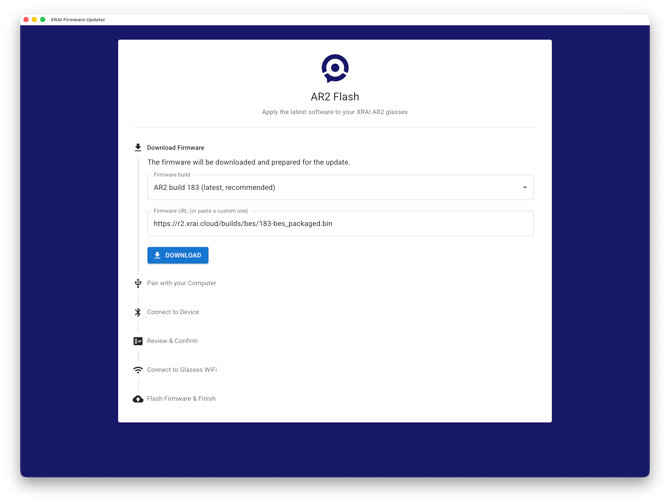
In the first step, you’ll be prompted to **download the latest firmware** for your AR2 Glasses.
**Step 4: Disable Bluetooth on Your Mobile Device**
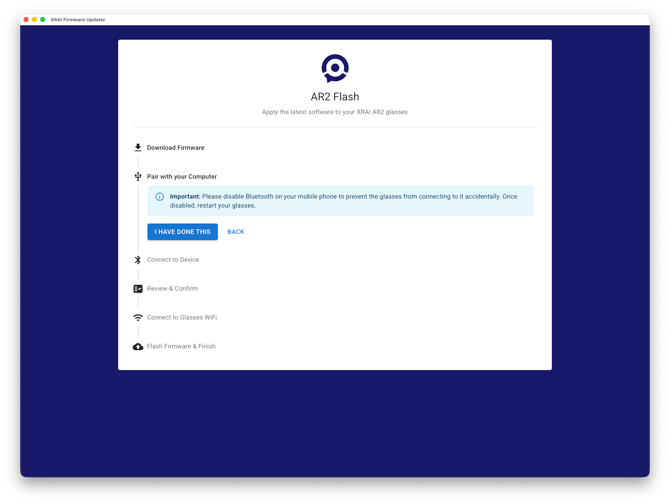
To prevent automatic connections, **turn off Bluetooth** on your iOS or Android device before continuing. Once done, select **I have done this**.
**Step 5: Power On and Pair Your XRAI AR2 Glasses**
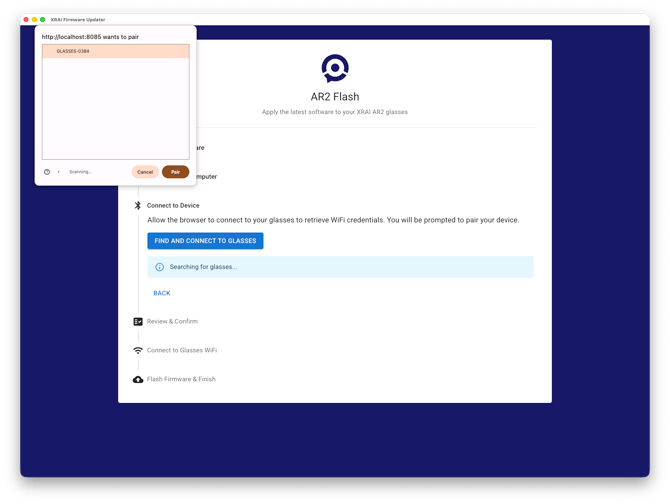
Switch on your XRAI AR2 Glasses.
When prompted, **pair the glasses with your computer over Bluetooth** and select **Pair**.
**Step 6: Review & Confirm**
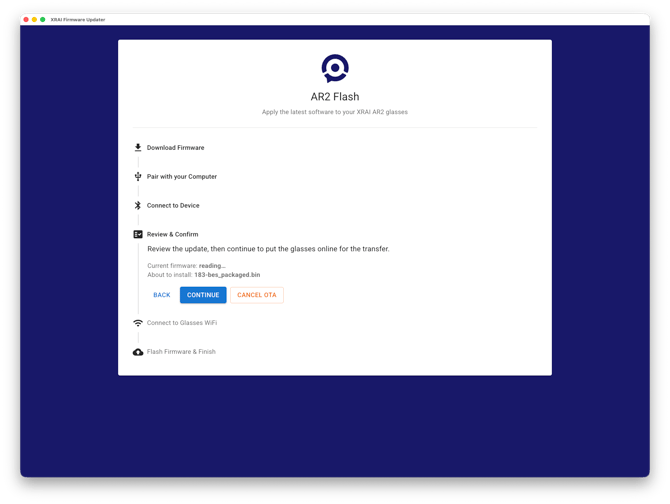
After pairing, you’ll be prompted to check the firmware before installing. Select **Continue** to move to the next step.
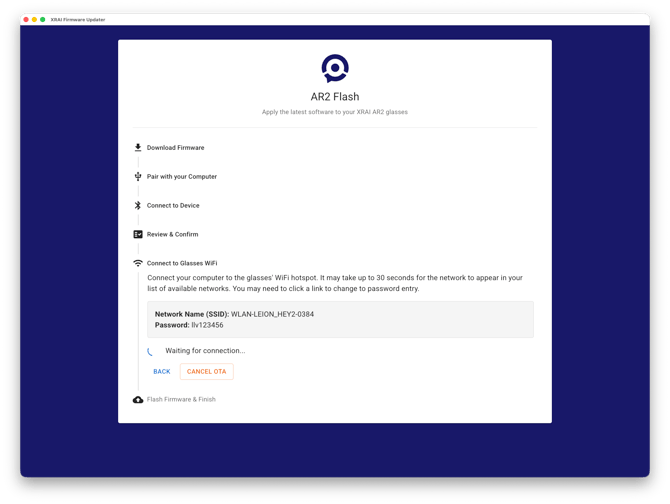
**Step 7: Connect to the Glasses’ Wi-Fi Network**
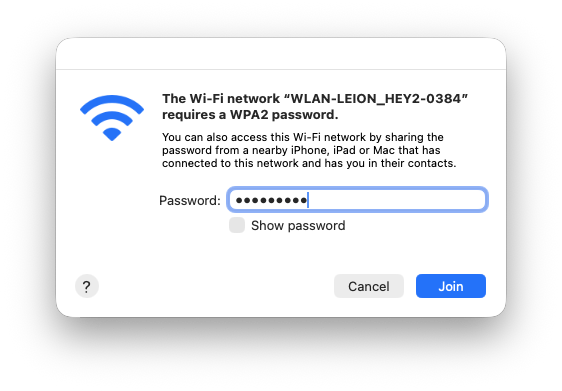
On your computer, browse available Wi-Fi networks and connect to the network starting with:
**WLAN-LEION\_HEY2 ...**
A Wi-Fi password will be provided in the updater — enter it to connect.
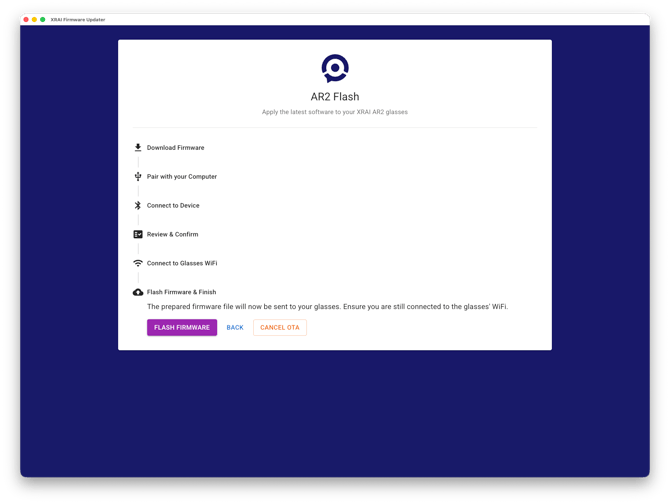
**Step 8: Flash the Firmware**
Once connected, select **Flash Firmware** to start the update.
Please wait until the process is fully complete before disconnecting your glasses or closing the updater.
- [Getting started](https://knowledge.xrai.glass/getting-started)
- [Using XRAI](https://knowledge.xrai.glass/using-xrai#main-content)
- [AI Assistant](https://knowledge.xrai.glass/using-xrai#ai-assistant)
- [Languages & Translation](https://knowledge.xrai.glass/using-xrai#languages-translation)
- [Augmented Reality (AR)](https://knowledge.xrai.glass/using-xrai#augmented-reality-ar)
- [Transcription & Conversations](https://knowledge.xrai.glass/using-xrai#transcription-conversations)
- [Using XRAI Stream](https://knowledge.xrai.glass/using-xrai-stream)
- [XRAI AR2](https://knowledge.xrai.glass/xrai-ar2)
- [Smart Glasses](https://knowledge.xrai.glass/smart-glasses#main-content)
- [Using Nreal](https://knowledge.xrai.glass/smart-glasses#using-nreal)
- [XREAL Beam](https://knowledge.xrai.glass/smart-glasses#xreal-beam)
- [Troubleshooting](https://knowledge.xrai.glass/troubleshooting#main-content)
- [Troubleshooting XRAI Glass](https://knowledge.xrai.glass/troubleshooting#troubleshooting-xrai-glass)
- [Samsung](https://knowledge.xrai.glass/troubleshooting#samsung)
- [Nreal (Nebula)](https://knowledge.xrai.glass/troubleshooting#nreal-nebula)
- [Funding](https://knowledge.xrai.glass/funding#main-content)
- [United Kingdom](https://knowledge.xrai.glass/funding#united-kingdom)
- [FAQs](https://knowledge.xrai.glass/faqs)
- [Subscriptions](https://knowledge.xrai.glass/subscriptions#main-content)
- [iOS](https://knowledge.xrai.glass/subscriptions#ios)
- [XRAI AR One](https://knowledge.xrai.glass/xrai-ar-one#main-content)
- [FAQ](https://knowledge.xrai.glass/xrai-ar-one#faq)
- [Hardware](https://knowledge.xrai.glass/xrai-ar-one#hardware)
- [XRAI for Teams](https://knowledge.xrai.glass/xrai-for-teams#main-content)
- [Using XRAI for Teams](https://knowledge.xrai.glass/xrai-for-teams#using-xrai-for-teams)
[](http://xrai.glass)
251 Little Falls Drive, Wilmington, Delaware, 19808
[mailto:email@email.com](mailto:email@email.com)
Copyright © 2025, XRAI Inc